
Check a plant's health
A health check takes a few guided photos of a struggling plant and three quick questions, then suggests the likely cause and what to do. Part of Fern Pro.
On this page
Yellow leaves, brown spots, something moving under a leaf? A health check walks you through the photos that show the problem best, asks three quick questions, and comes back with what's most likely going on and what to do about it. From there you can start a treatment, adjust the plant's care, or ask for a second opinion.
A health check is an AI's reading of your photos. It can be unsure, and it can be wrong. It says how sure it is, and when it can't tell two causes apart it shows both rather than guess. Check what it suggests against the plant in front of you.
Start a health check
- On a plant's page, tap Check plant health on the Health tab, or in the ••• menu.
- Or tap +, then Scan, and switch from Identify to Check health at the bottom of the camera. Fern asks "Which plant?": pick one of yours, or tap Not in my plants · identify it first for a plant that isn't in Fern.
Take the photos
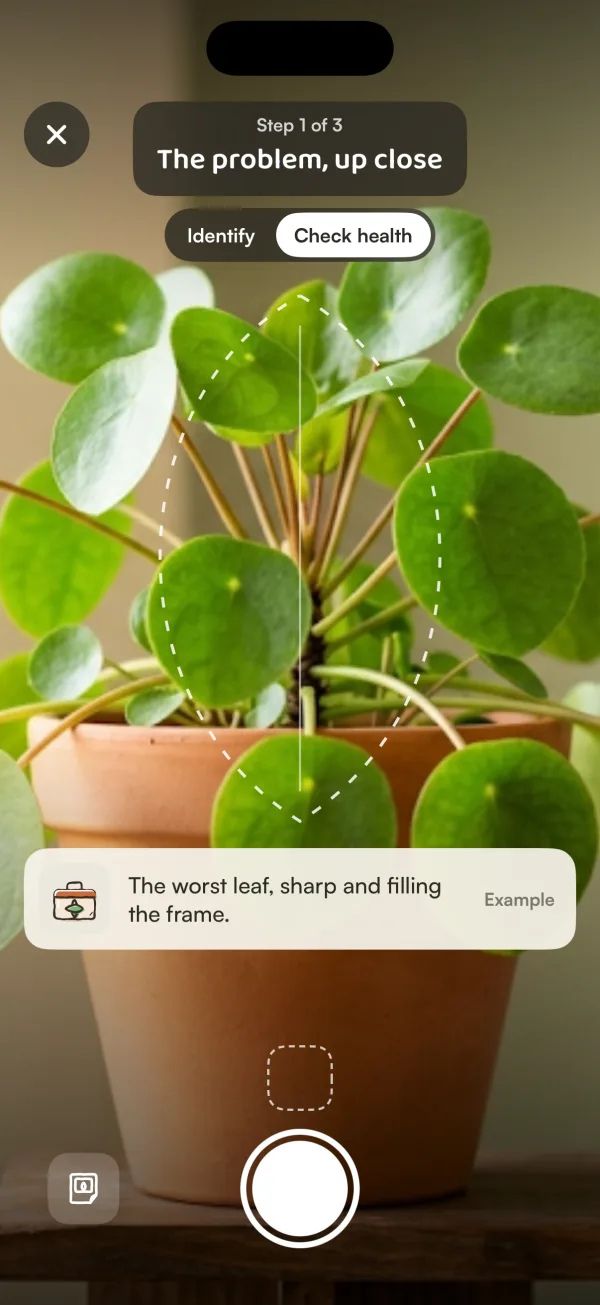
Fern's camera asks for one shot at a time, with an outline to line it up and a tip:
- The problem, up close: "The worst leaf, sharp and filling the frame."
- Under the same leaf: "Pests hide underneath — mites, mealybugs, scale."
- The whole plant: "So Fern sees where it's happening."
- The soil and stem base, which is optional: "For gnats or rot." Tap Skip if there's nothing to see.
Tap the shutter for each. The small photos along the bottom show what you've taken; tap one to Retake or Remove it. You can also pick a photo from your library instead.
If a shot is likely to be hard to read, Fern says so before you take it: "A bit dark — move closer to a window", "Hold still — it's blurry" or "Move closer — the plant should fill the frame".
Answer three quick questions
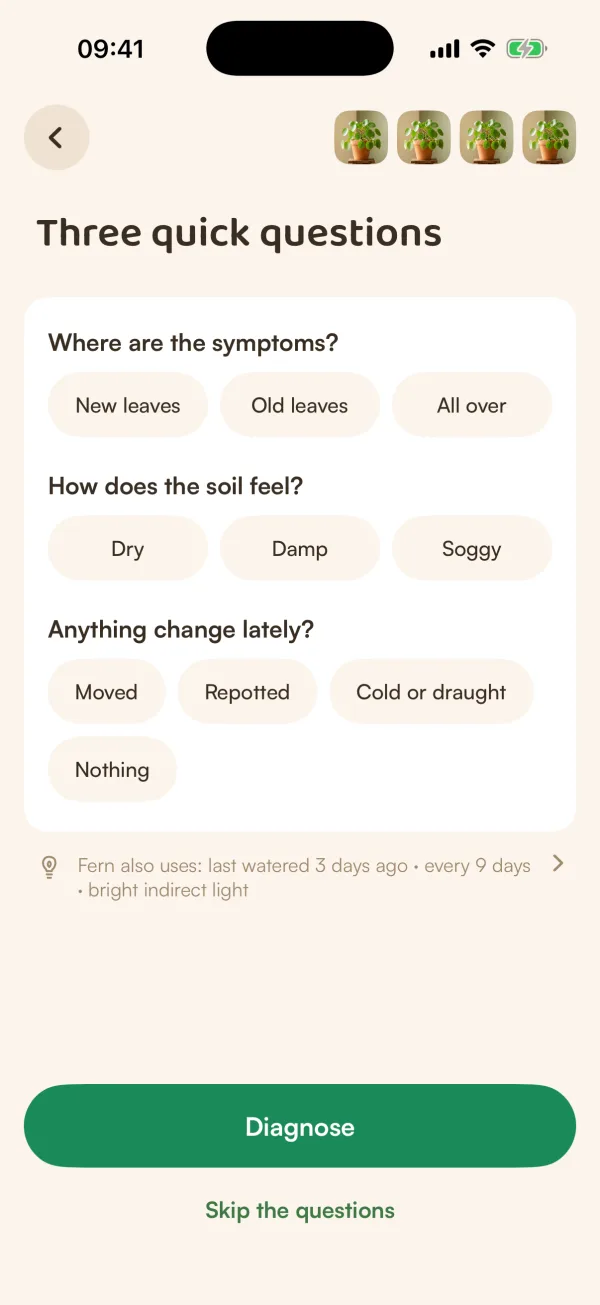
"Three quick questions" asks:
- Where are the symptoms? New leaves, Old leaves or All over.
- How does the soil feel? Dry, Damp or Soggy.
- Anything change lately? Moved, Repotted, Cold or draught or Nothing.
Tap an answer to choose it, and again to clear it. Then tap Diagnose, or Skip the questions.
What Fern sends
For a plant of yours, a line under the questions says what else Fern uses: "Fern also uses: …". Tap it to see What Fern sends. With your photos and answers, Fern sends the plant's species (or, if Fern doesn't know it, the name you gave the plant) and a few things from its care in Fern: when it was last watered, how often it's watered, its light, its room, its last few soil checks, and any treatment course from the last 90 days. For more on what Fern shares, see What Fern shares, and with whom.
While Fern looks, you'll see your photo with a short line such as "Looking under the leaves". Tap ✕ to stop: Keep the photos takes you back to the camera, Discard closes the check.
What you'll see
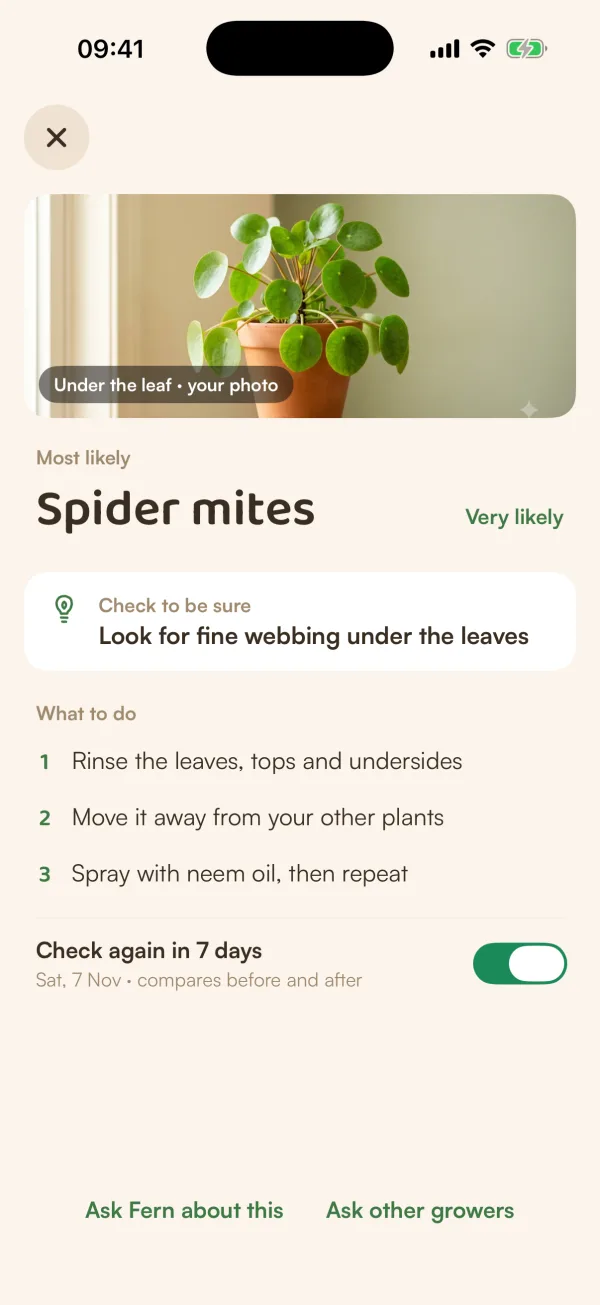
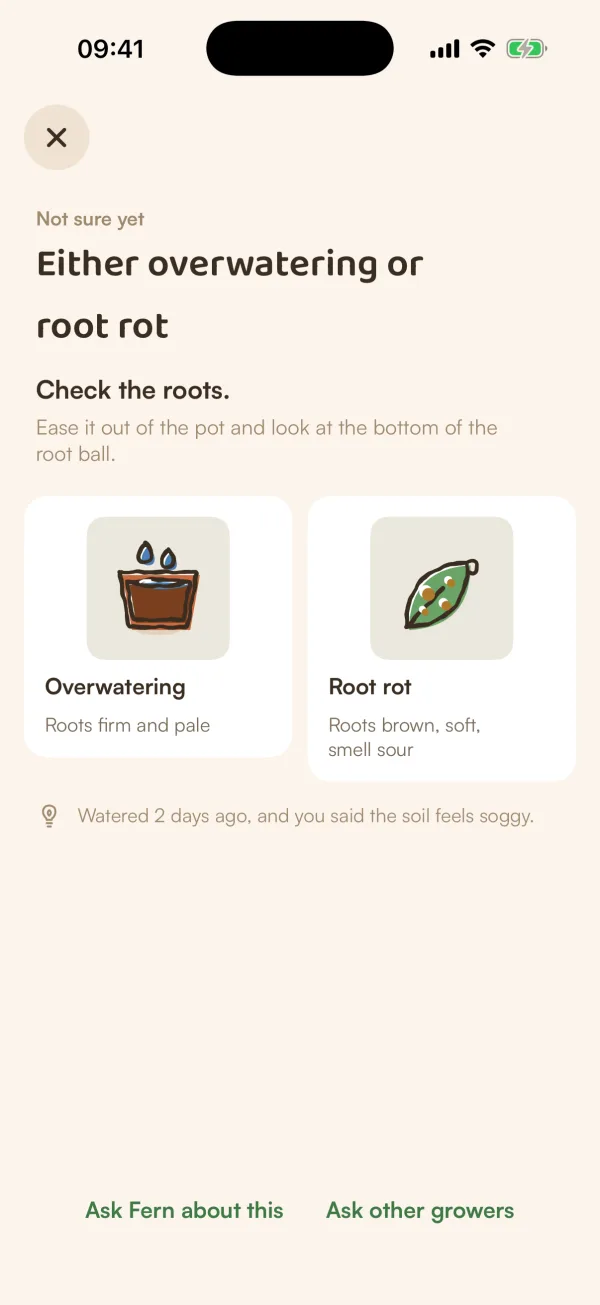
The result is one of these:
- Most likely: one cause, how sure Fern is (Very likely, Possible or Unlikely), the photo that showed it, Check to be sure (one thing to look at yourself), and What to do in up to three steps.
- Not sure yet: "Either … or …". Fern shows both causes side by side with the sign of each, and what tells them apart. Look at the plant, then tap the one you found under "What did you find?".
- Looking healthy: "Fern didn't spot a problem in these photos.", with tips under "To keep it that way".
At the bottom, depending on the result:
- Start a treatment: for pests or a disease. The course setup opens with the problem picked. See Start a treatment course.
- Adjust care: opens the plant's care settings with Fern's change filled in, for you to check and save ("Care updated").
- Ask Fern about this: opens a chat with your photos and the result, ready to send.
- Ask other growers: starts a Growers question with the photo that showed the problem. It uses the plant's species, not its name.
Check again later
When Fern names a likely cause, a Check again in N days switch is on by default, with the date and "compares before and after". Fern picks the number of days. Leave it on and Fern starts a recovery plan: a check for that plant appears on Today on that day, and you compare new photos with these. Turn it off if you don't want one. Starting a treatment from the result starts the plan either way, so the course and its photo check-ins stay together. See Follow a recovery plan.
Tips
- Daylight and a sharp close-up make the biggest difference. Fill the frame with the worst leaf.
- Don't skip the leaf underside. Many pests only show there.
- Answer the soil question honestly. Soggy soil points to very different causes than dry soil.
What if…
What if Fern says the result isn't certain?
That's Fern being honest. Use Check to be sure, or look for the signs it lists for each cause. You can also ask Fern or other growers before you act.
What if the check didn't work?
You'll see what went wrong and Try again, which takes you back to the camera for new photos.
What if the camera doesn't open?
Fern shows "Fern needs the camera to scan" with Open Settings, or Choose from library to use photos you already have. See Camera or location isn't working.
What if I check a plant that isn't in Fern?
Fern names it first, then checks it. You won't get treatments or care changes for it, but you can add it: Add Monstera to my plants, for example.