
Add a plant by name
Search for your plant's species, check its page, then name it, say where it lives and tune its first schedule. It takes five short steps.
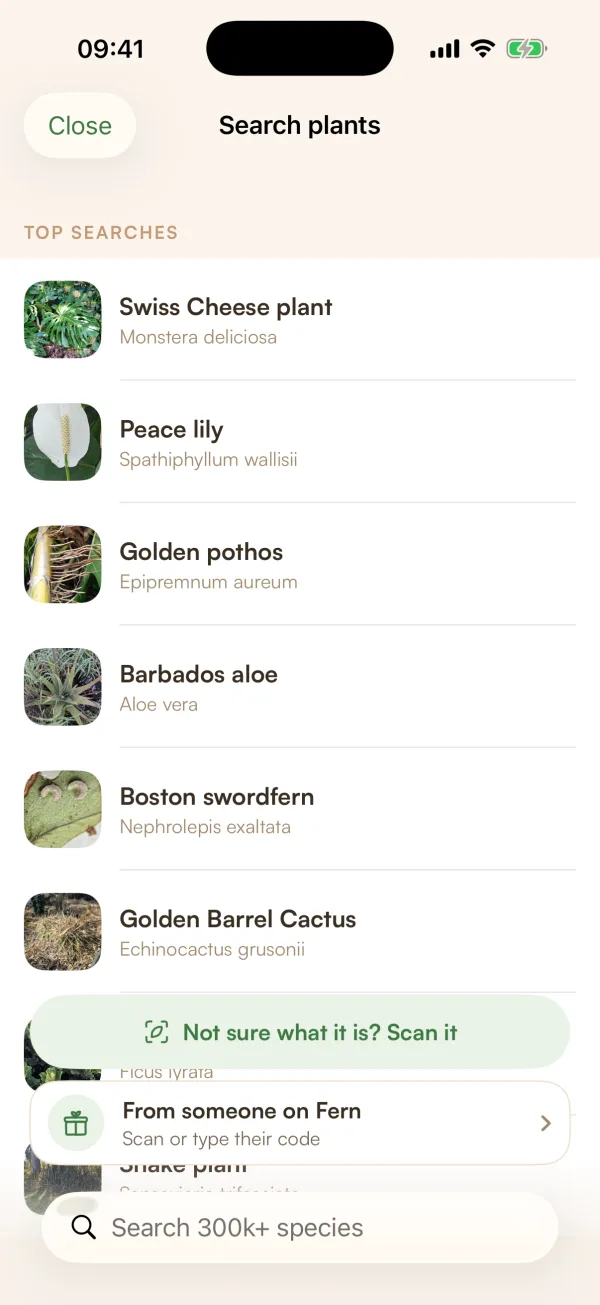
If you know what your plant is, or can find it in a list, adding it by name is the quickest way in. Fern looks up the species, builds a care schedule from it, and the plant lands in My Plants ready to go.
Find the species
- Tap the + button in the middle of the tab bar, then Add a plant.
- Type a name in Search 300k+ species. A common name ("snake plant") or a Latin one ("Dracaena trifasciata") both work. Results appear once you've typed two letters.
- Tap your plant in the list.
Before you type anything, Fern shows Top searches, the plants people look for most. If yours is there, tap it.
The species page opens: what it needs, how easy it is, whether it's safe around pets. When it's the right one, tap Add to my plants.
Five short steps
The bar at the top fills in as you go. Tap Continue to move on, or the back arrow to change an earlier answer.
- Name your Monstera (step 1 of 5, with your plant's species). Give it a nickname, like "Monty", or leave it blank to keep the species name.
- Where will it live? Choose a home, or Just me for a plant only you look after, then a place such as Kitchen. Tap New place to add one. A place carries its light level, so its plants share it.
- Give it a portrait? (optional). Take a photo with Camera or pick one from Library. Without one, the plant shows a picture of its species.
- Tune the first schedule (optional). Skip anything you're unsure of:
- Pot material: Plastic, Terracotta, Glass, Ceramic or Porcelain. Terracotta dries faster, so Fern waters a little more often.
- Light at this spot (How bright is this spot? for a plant that's just yours): taken from the place if it has one. Otherwise set it by hand (Low, Medium, Bright or Direct sun), or tap Measure the light.
- Last watered and Last repotted: rough answers like "3–4 days ago" are fine.
- Meet the newest sprout. Check the summary, then tap Add to My Plants.
Fern opens the new plant's page. Its first watering shows as "Fern sets it from here": the schedule is built from the species and your answers, and Fern asks you to feel the soil before its first watering.
Free and Fern Pro
| Free | Fern Pro | |
|---|---|---|
| Plants Fern looks after | One | As many as you like |
| Setting the light by hand | Yes | Yes |
| Measure the light with the camera | No | Yes |
On the free plan, once you have a plant, the Add a plant tile shows a lock. Tapping it explains "Room for more plants" and shows the Fern Pro plans.
Tips
- Not sure what it is? Tap Not sure what it is? Scan it at the bottom of the search, and Fern identifies it from photos. See Identify a plant with your camera.
- Someone on Fern is giving you a plant? Tap From someone on Fern at the bottom of the search instead. See Receive a plant from someone.
- The more you tell Fern in step 4, the closer the first schedule is. Your soil checks fine-tune it after that.
What if…
What if my plant isn't in the search?
Try its other name, the Latin name, or a shorter part of it ("pothos" rather than "golden pothos"). Or scan it with the camera.
What if I picked the wrong species?
Open the plant, tap •••, then Change species. Its care is rebuilt for the new species and its history stays. See Rename, edit or remove a plant.
What if I have lots of plants to add?
Bring them in from a spreadsheet or screenshots in one go. See Import plants from a list or another app.