
A scan can't find your plant
When a scan finds no plant, or none of the matches look right, take clearer photos, add a flower, or search for the plant by name instead.
On this page
Plant scans are good, but some plants are hard to tell apart from a photo, and some photos are hard to read. When a scan doesn't find your plant, a second try with better photos usually does. If not, you can always find it by name.
What you'll see
- No plant found: "That didn't quite work" with "Couldn’t spot a plant in those photos — try another angle." Tap Try another angle to take new photos.
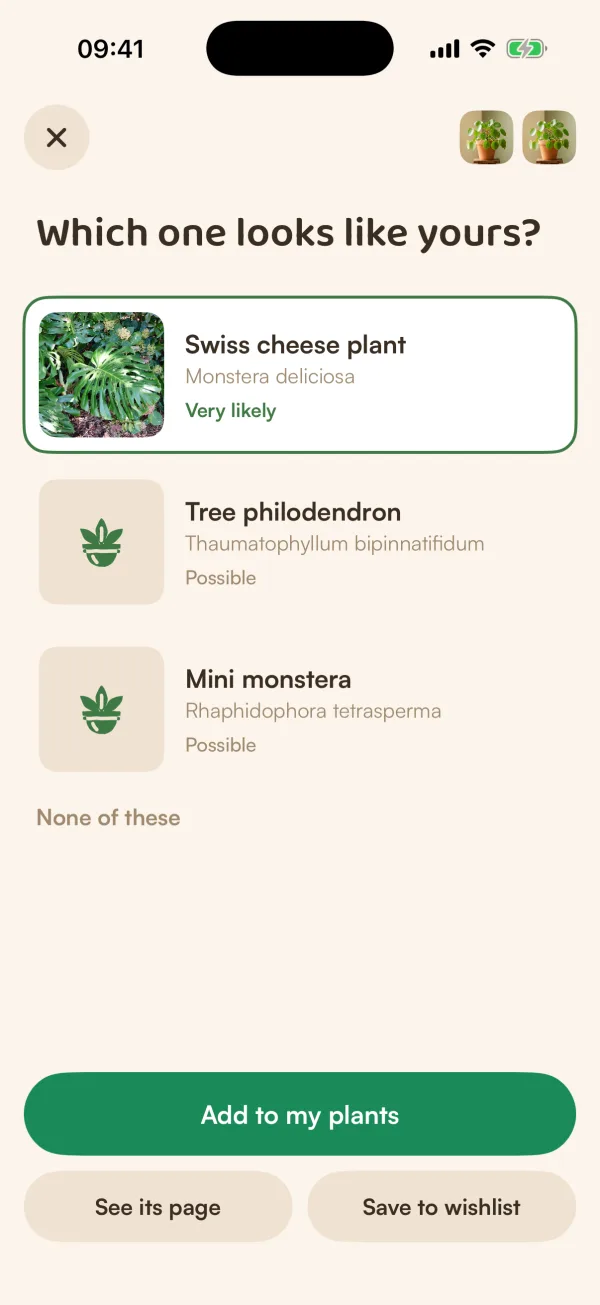
- Several possible matches: "Which one looks like yours?" with up to three plants, each marked Very likely, Possible or Unlikely. Tap the one that looks like yours.
- None of them is right: tap None of these, then Try another angle, or Ask Fern to talk it through.
When Fern is sure, it shows the one plant by name instead.
Sometimes Fern asks for one more photo before it answers, when two plants look alike: "Two plants look alike", followed by the two names. Tap Take it to add the photo it asks for, or Show me both to see both plants.
Take photos Fern can read
The scanner guides you photo by photo. What helps most:
- The whole plant: "Daylight and a plain background help."
- One leaf, up close: "The top of the leaf, filling the frame."
- A flower or fruit, if it has one: "Has flowers or fruit? Add one — it’s the clearest clue."
Watch for the scanner's hints while you shoot: "A bit dark — move closer to a window", "Hold still — it’s blurry", or "Move closer — the plant should fill the frame".
Search by name instead
If you know, or can guess, what the plant is, search for it:
- Tap +, then Add a plant.
- Type the name in Search plants. Fern searches over 300,000 species.
- Pick the plant and add it. See Add a plant by name.
If you added a plant from a scan and the species turns out wrong, open the plant, tap ••• and choose Change species. See Edit or remove a plant.
Free and Fern Pro
Scanning a plant is part of Fern Pro. Searching by name is free. As a guest, you can try Fern's AI 3 times on this phone, and every scan counts as one, even one that finds nothing. After that: "Save your garden to keep using Fern's AI — it only takes a tap."
What if…
What if I'm adding my first plant and the match is wrong?
Tap Not quite — search instead under "Is this your plant?" and find it by name.
What if the scan says something went wrong rather than "no plant"?
Fern couldn't finish the scan, often because of the connection. Check you're online and try again. See Fern can't connect.
What if my camera won't open?
Fern needs camera access to scan. See Camera or location is off, or use Choose from library.