
Join Growers
Joining Growers is free and creates a public profile with a handle. Your plants, homes, email and exact location stay private. Here's what others see and how to join.
On this page
You can read Growers without joining. Joining creates your Community profile, the one part of Fern that other people can see, so you can post, answer and follow. It's free on every plan, and Fern shows you exactly what becomes public before you start.
Join
- On Growers, tap Join Growers on the card at the top. Fern also brings you here when you tap something that needs a profile, such as Follow or Post.
- Read Join Fern Community: what others will see, what's never shared, and the short version of the rules. Tap Continue.
- Set up Your Community profile (see below) and tap Continue to the rules.
- Read the rules, tick I've read the rules and I accept them, then tap Join Community.
You're back on Growers with your profile ready. If you had started something before joining, such as a question about one of your plants, Fern carries on with it.
What others see, and what they never see
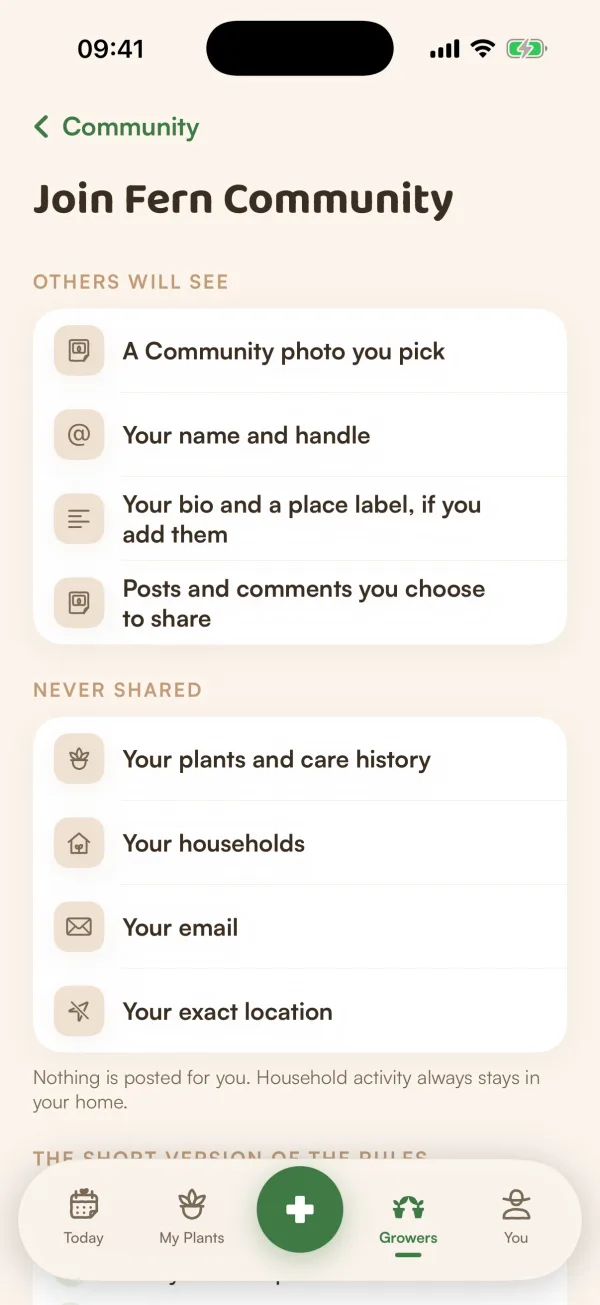
This is the list Fern shows before you join:
| Others will see | Never shared |
|---|---|
| A Community photo you pick | Your plants and care history |
| Your name and handle | Your households |
| Your bio and a place label, if you add them | Your email |
| Posts and comments you choose to share | Your exact location |
"Nothing is posted for you. Household activity always stays in your home." Your plants stay private after you join. You choose, plant by plant, whether anyone outside your home sees one. See Choose who can see a plant.
Your Community profile
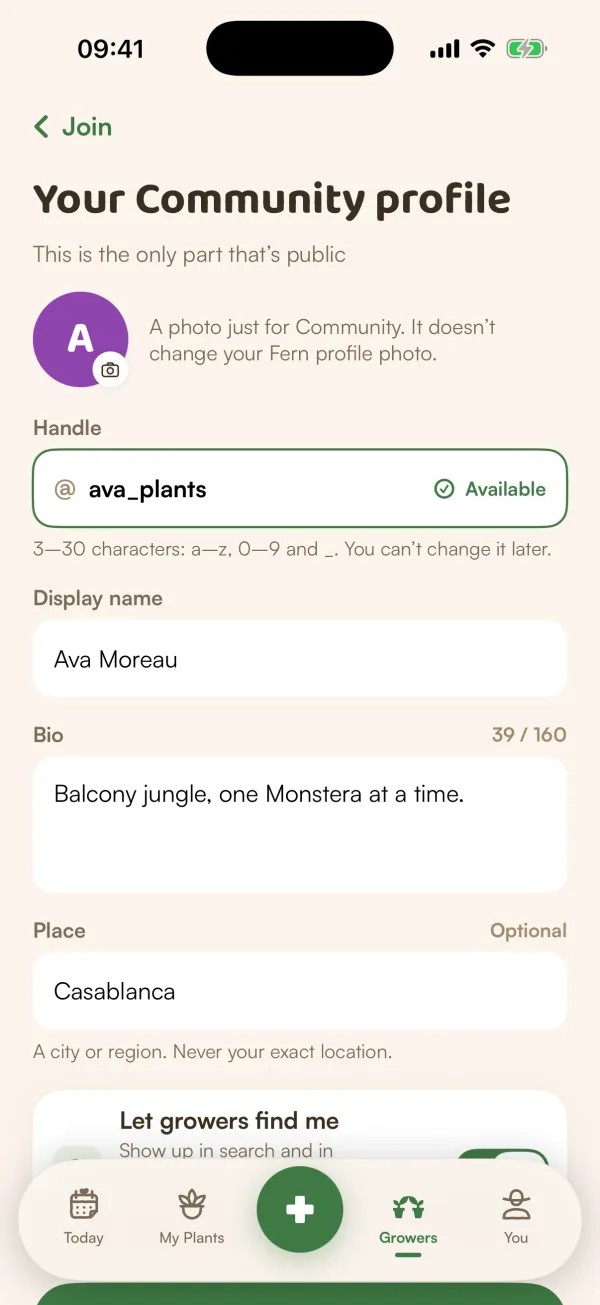
"This is the only part that's public."
- Photo: tap the circle to choose one. "A photo just for Community. It doesn't change your Fern profile photo."
- Handle: your @name. "3–30 characters: a–z, 0–9 and _. You can't change it later." Fern checks it as you type and shows Available or Taken. When it's taken, tap one of the suggestions under Try.
- Display name: the name above your handle. You can change it later.
- Bio: a line about you and your plants, up to 160 characters.
- Place (optional): "A city or region. Never your exact location." Whatever you type here is what people see.
- Let growers find me: "Show up in search and in suggestions, including Popular in your region. Your posts and profile stay visible either way." It's on to start with. You can turn it off here or later.
The rules
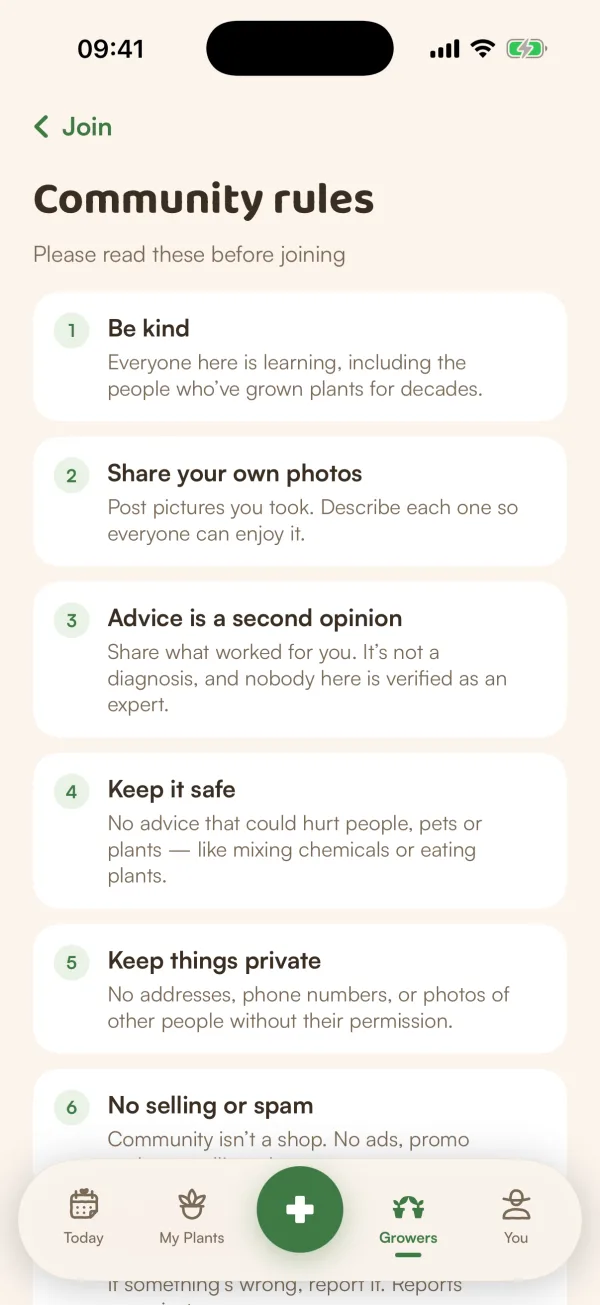
The short version reads:
- "Be kind — disagree about plants, never about people"
- "Keep it about plants: no ads, spam or selling"
- "Share safe advice, and say when you're not sure"
- "Protect privacy — yours and everyone else's"
- "Only post photos you took or may share"
The full Growers rules have a few more sections, and you can read them again any time in Growers settings, or on the web at fernplant.app/community-rules.
Free and Fern Pro
Joining is free, and so is everything about your profile. Once you've joined on the free plan you can read, search, use the map, save posts, report and block.
What if…
What if it says "That doesn't fit the Community rules"?
Every profile is checked before it goes up. Something in your name, bio, place or photo didn't pass. Change it and tap Try again.
What if my handle was taken while I was joining?
Fern says "That handle was just taken — go back and pick another." Go back to your profile, choose another handle and join again.
Can I change my handle later?
No. Your display name, bio, place and photo can change at any time, but the handle stays. See Your Growers profile and settings.
What if I left Growers and want to come back?
On Growers, tap Rejoin as @yourhandle on the card at the top. You come back with the same handle, and your profile, posts and comments return.