
Add your first plant
During setup, scan your plant or search for it by name, tell Fern when you last watered it, and see the care plan Fern makes for its first weeks.
On this page
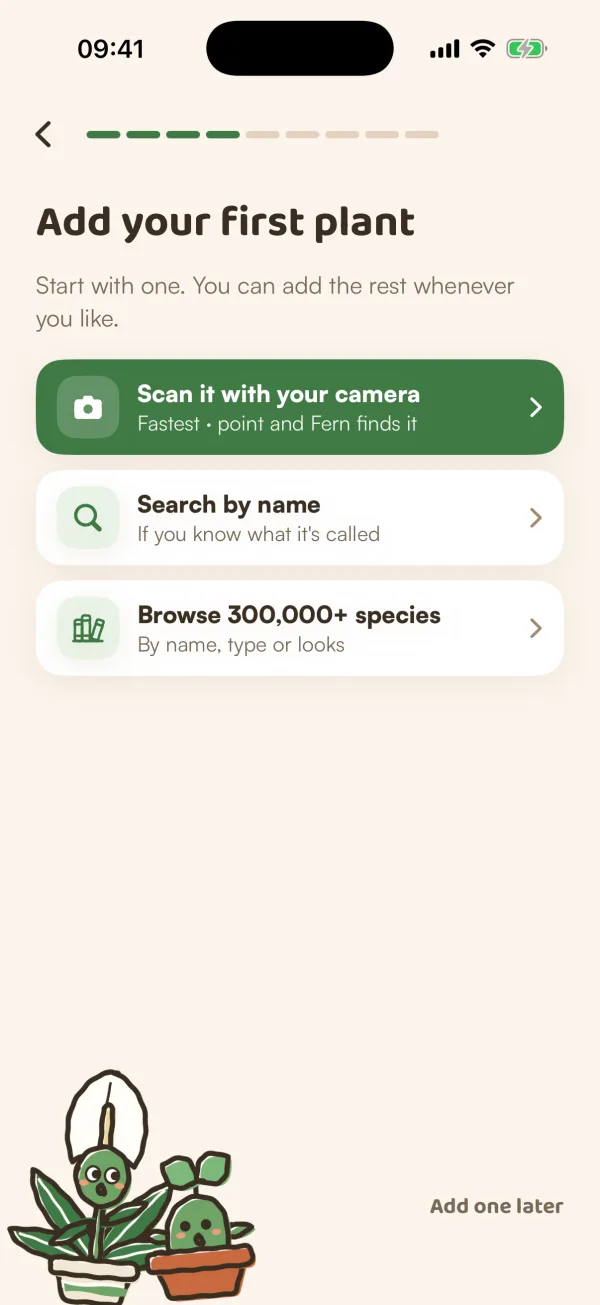
Your first plant is where Fern starts to be useful. Tell it what the plant is and when it last had water, and Fern works out its first weeks of care. You add it during setup, on the screen called Add your first plant.
Choose how to add it
Pick one of three ways:
- Scan it with your camera ("Fastest · point and Fern finds it"). Take a photo of the whole plant and Fern names it.
- Search by name ("If you know what it's called").
- Browse 300,000+ species ("By name, type or looks").
Searching and browsing open the same list, Search plants. Type at least two letters in "Search 300k+ species", or pick one of the Top searches, then tap your plant.
Not ready? Tap Add one later. Setup carries on without a plant, and you can add one from Today whenever you like.
Check it's your plant
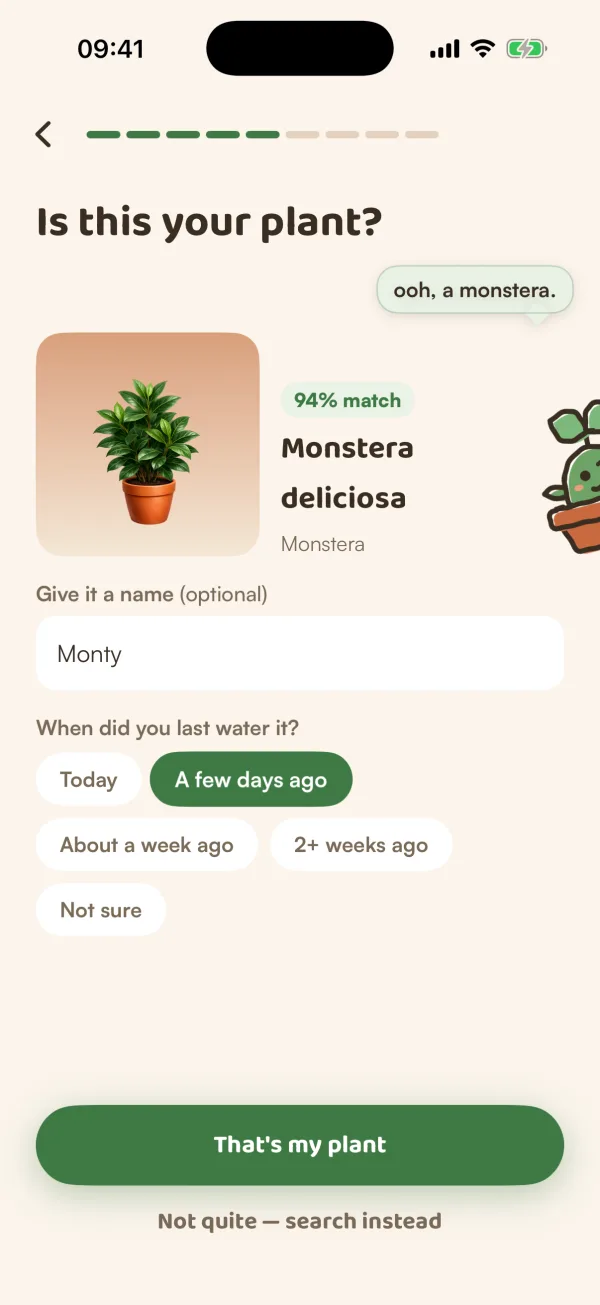
Fern shows its best match under Is this your plant?: your photo (or the species' picture), its name, and after a scan, how sure Fern is ("94% match", for example).
- If the name looks wrong, tap Not it? N other matches to pick another, or Not quite — search instead to go back and search.
- Under Give it a name (optional), type what you call it, such as "Monty".
- Under When did you last water it?, tap Today, A few days ago, About a week ago, 2+ weeks ago or Not sure.
- Tap That's my plant.
See its first weeks
Fern now shows "Monty's first weeks", worked out from the species and when you last watered. Up to three cards show the next care from its plan, each with its day (Today, Tomorrow or a date) and a line on why:
- Water: "About every 7 days for this plant. Feel the soil first: dry on top? Then water."
- Feed: how often, "while it's growing".
- Other care, such as Clean the leaves: "Fern reminds you on the day."
"That's all there is to set up. You can change any of these on Monty's page." Tap Looks good to carry on with setup.
Fern adjusts these dates as it learns your home. Your answers to its soil checks teach it: see Check the soil before watering.
When a scan doesn't work
If Fern can't name the plant, it keeps your photo up and says "Fern couldn't tell what this is". Choose Try another photo, Search by name, or Back to the options. Without a connection, Fern says it needs one to look at your photo; try again when you're back online.
Free and Fern Pro
Adding your first plant is free. Before you save your garden, Fern keeps one plant, and Add another plant becomes Add more plants: "Save your garden with Apple to add more — 14 days of Fern Pro, room for every plant." Saving starts your free trial, and setup takes you back to the plant you were adding.
During setup you can scan before you've saved your garden: a phone gets 3 tries at Fern's AI before saving. After setup, scanning is part of Fern Pro. See Identify a plant with the camera.
Tips
- For a scan, get the whole plant in the photo, in good light. If it has flowers or fruit, include them.
- Not sure is a fine answer for the last watering. Fern decides, and asks you to feel the soil before the first watering.
- Start with the plant you'd most like Fern to look after. On the free plan, Fern keeps the first plant you added.
What if…
What if I picked the wrong species?
Tap the back arrow on the first-weeks screen, choose the right plant, and tap Save changes. Fern replaces the plant it added a moment ago, so nothing is lost. After setup, you can change a plant's species from its page: see Edit or remove a plant.
What if I have lots of plants?
Start with one. Once you've saved your garden, add the rest from My Plants, or bring a whole list in at once: see Import your plants.
What if my plant isn't in the search?
Try its common name and its Latin name, or a shorter part of either. If it still doesn't show, choose the closest relative for now; you can change the species later.