
Set up Fern
The first time you open Fern, it asks two quick questions, helps you add a plant and sets up your reminders. You don't need an account to start.
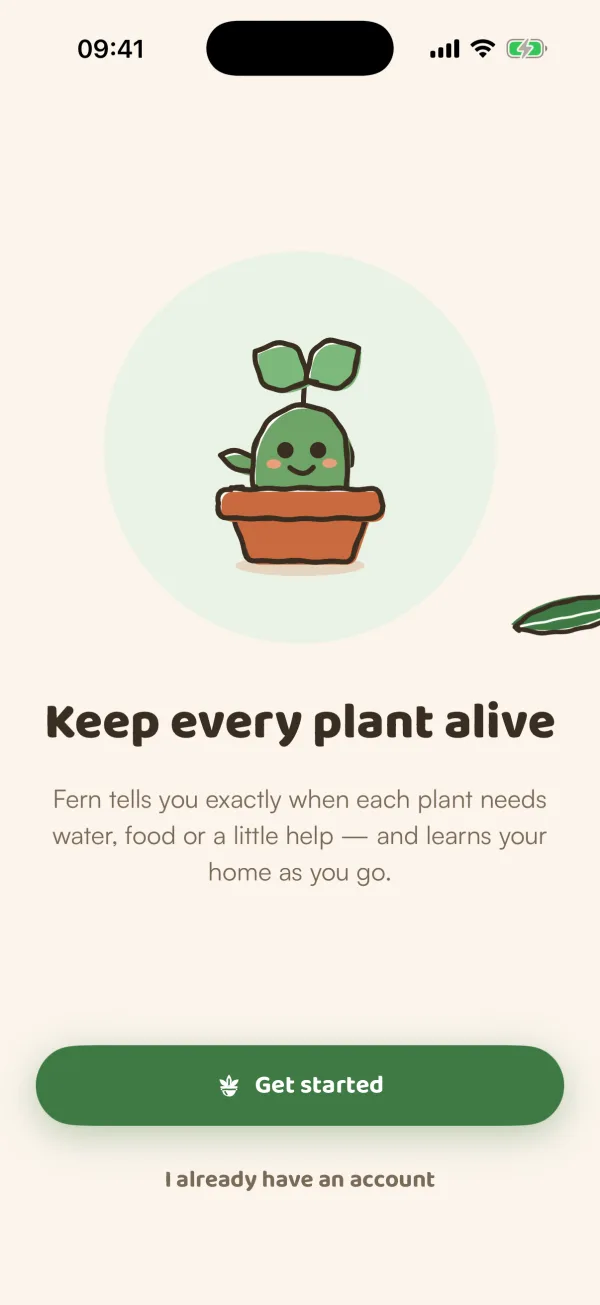
The first time you open Fern, it walks you through a short setup: how you'd like it to look, a couple of questions about your plants, your first plant, and when you'd like to hear from Fern. You can start without an account. Fern asks you to save your garden near the end.
Go through setup
- On the first screen, "Keep every plant alive", tap Get started.
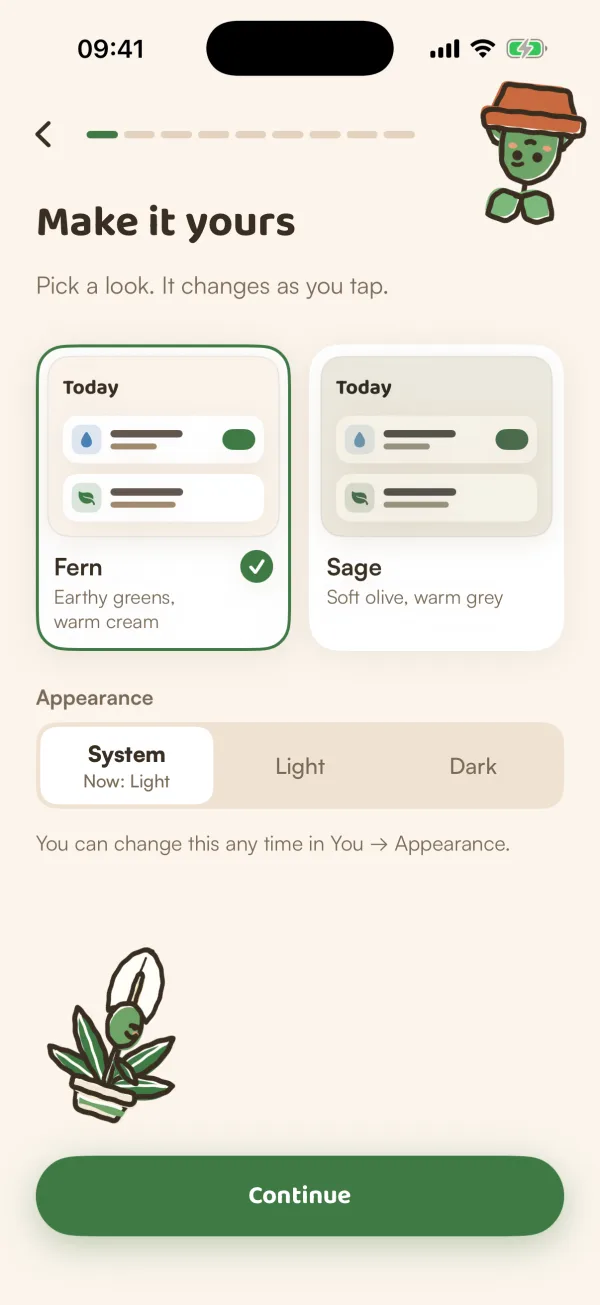
- Make it yours: pick a look, Fern (earthy greens, warm cream) or Sage (soft olive, warm grey), and an appearance, System, Light or Dark. The whole app changes as you tap. Tap Continue.
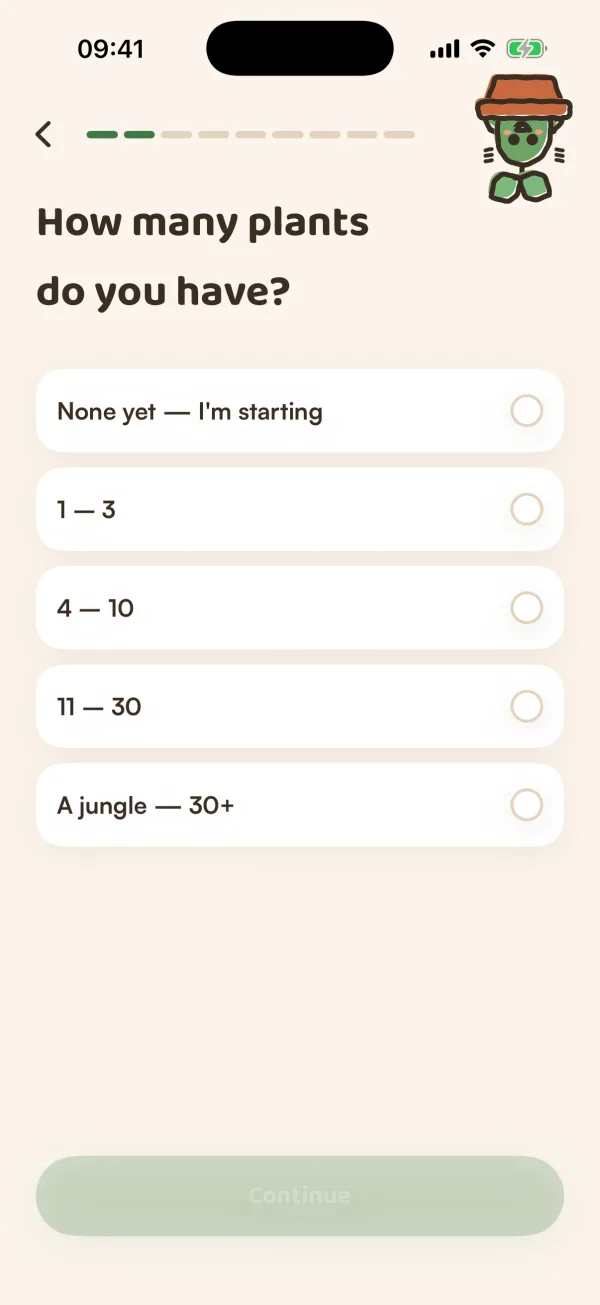
- How many plants do you have? Choose an answer, then Continue.
- How are they doing? Choose an answer, then Continue. Fern skips this one if you chose "None yet — I'm starting".
- Add your first plant: scan it, search for it by name, or tap Add one later. See Add your first plant.
- Save your garden with Apple or Google, or tap Not now. See Save your garden.
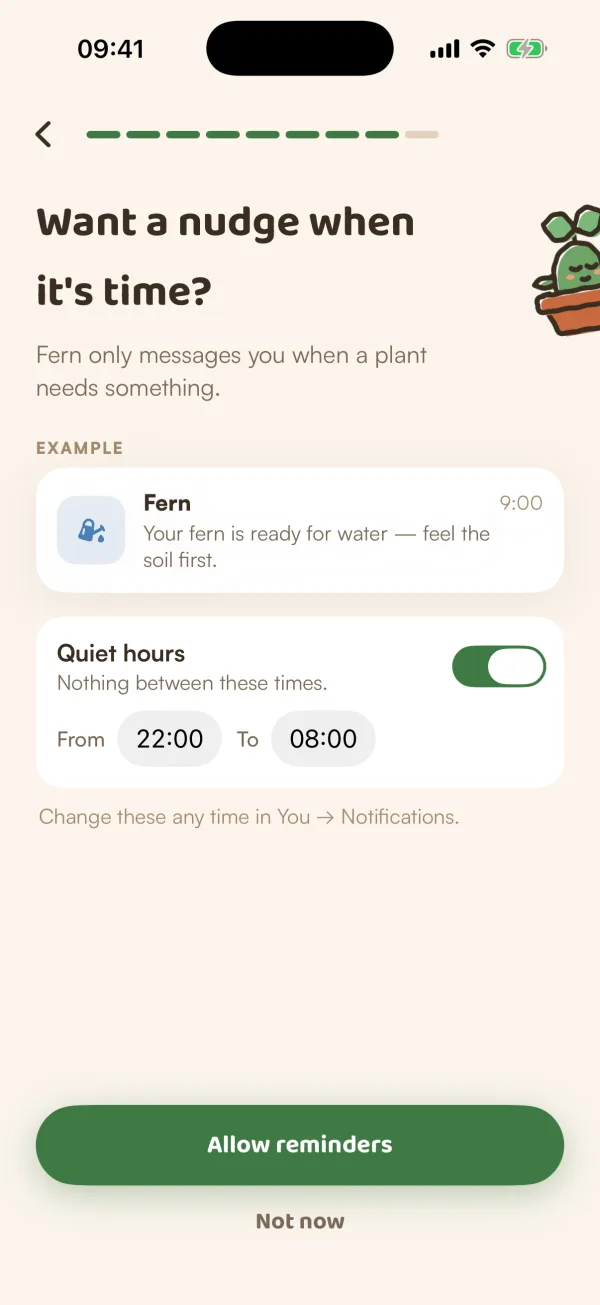
- Set up reminders. Fern shows what a reminder looks like for your plant, with Quiet hours already on from 22:00 to 08:00 ("Nothing between these times."). Change the times if you like, then tap Allow reminders and say yes when your phone asks. Or tap Not now.
- On the last screen, tap Start growing. You land on Today.
After each answer, Fern tells you in one line what it will do for you. Choose "I keep losing them", for example, and it says "Fern asks you to feel the soil before watering, so nothing drowns."
Go back a step
Every step has a back arrow at the top, and you can also swipe from the left edge of the screen. Going back from your first plant's plan lets you change it: a new name renames the plant, and a different species or last watering replaces the plant you added a moment ago, so its schedule starts right.
What the last screen says
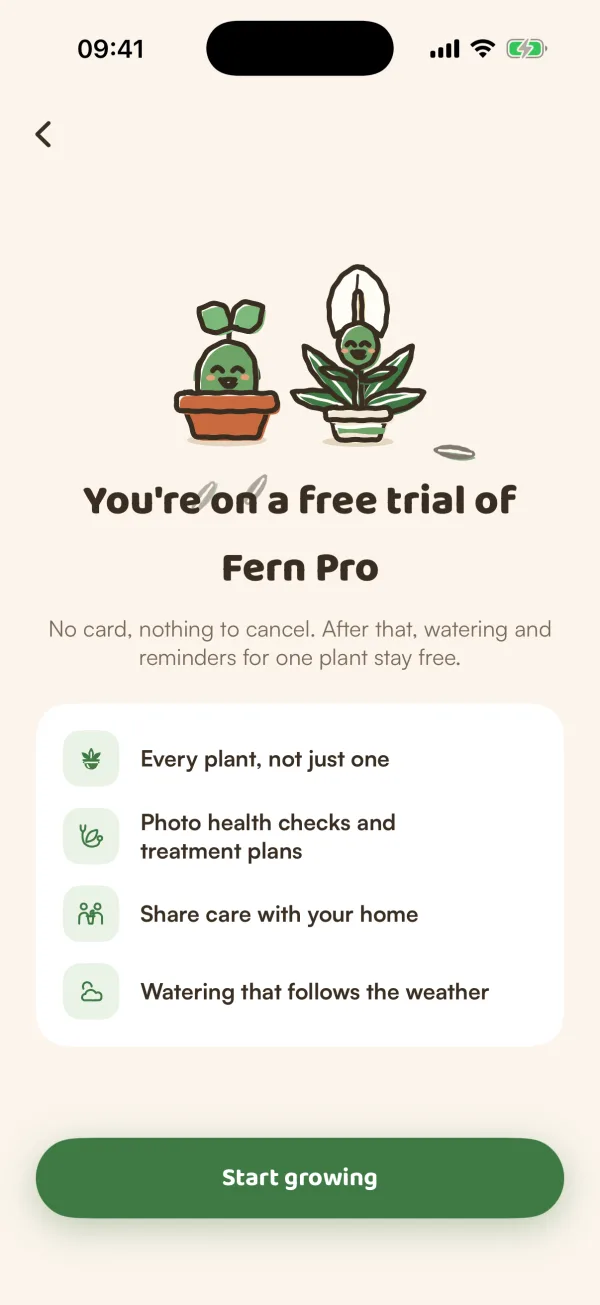
The last screen depends on how you finished setup.
| What you did | What Fern says |
|---|---|
| Saved your garden with a new account | "You're on Fern Pro — free for 14 days", with "No card, nothing to cancel. After that, watering and reminders for one plant stay free." |
| Tapped Not now on Save your garden | "Fern is looking after your plant". You can save your garden later from You. |
| Saved, but this phone already had a free trial | "Your free trial was already used on this phone", with See Fern Pro plans under Start growing. |
Below it, a short list shows what Fern Pro adds, such as "Every plant, not just one" and "Watering that follows the weather". Nothing is charged here, and there's no card to enter.
Tips
- Pick System under Appearance if you want Fern to follow your phone's light or dark setting. You can change the look any time in You › Appearance.
- Set quiet hours to match your sleep. Fern sends nothing between those times.
- If you're not sure what your plant is, scan it during setup. Setup is the one place you can try a scan before saving your garden.
What if…
What if I already use Fern on another phone?
Tap I already have an account on the first screen instead of Get started, and sign in with the same Apple or Google account. Your plants come back and setup is skipped. See Sign in on a new phone.
What if I closed Fern in the middle of setup?
Open it again. If you'd reached Add your first plant, your garden already exists on this phone, so Fern opens on Today with anything you'd added. You can add a plant, save your garden from You and turn on notifications from there. If you closed it before that step, setup starts again from the first screen.
What if I tapped Not now on reminders?
Fern doesn't send anything until you turn notifications on. You can do it any time in You › Notifications, and change quiet hours there too. Morning reminders explains when they come.