
Identify a plant with your camera
Take two photos, the whole plant and one leaf, and Fern names the plant and shows how sure it is. Then add it, open its page or save it to your wishlist.
On this page
Don't know what a plant is called? Fern can tell from a couple of photos. It suggests up to three matches, says how sure it is about each, and sets up care for the one you add.
Scan it
- Tap the + button in the middle of the tab bar, then Scan a plant. Check that Identify is chosen at the top (the other mode, Check health, is for a sick plant).
- The whole plant (Step 1 of 2): fit the whole plant in the frame and take the photo. Daylight and a plain background help.
- One leaf, up close (Step 2 of 2): the top of one leaf, filling the frame.
- If the plant has flowers or fruit, tap Has flowers or fruit? Add one — it's the clearest clue. and take one more photo. You can Skip it.
To use photos you already have, tap the library button beside the shutter. If Fern sees a problem with a shot while you aim, it says so: "A bit dark — move closer to a window", "Hold still — it's blurry" or "Move closer — the plant should fill the frame".
Fern then looks at the photos, and the screen says what it's doing ("Looking at the leaf shape", "Comparing with similar plants").
What you'll see
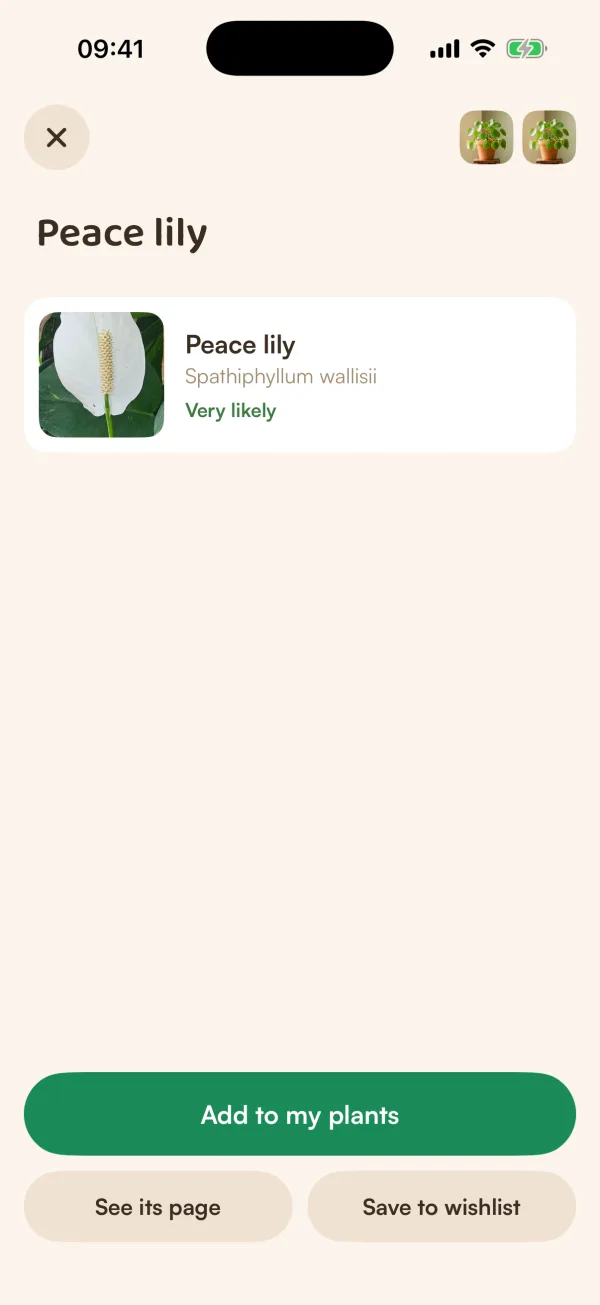
When Fern is sure, the plant's name is the title, with its photo and Latin name.
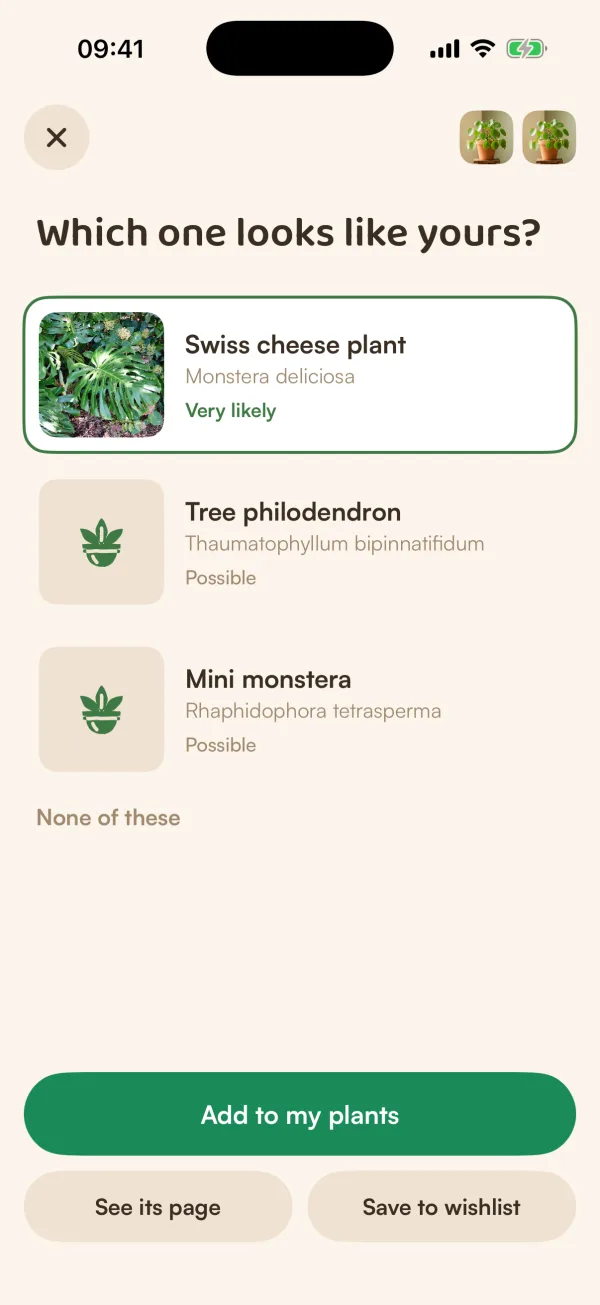
When it isn't, you see Which one looks like yours? with up to three matches. Each says how likely it is: Very likely, Possible or Unlikely. Tap the one that matches your plant.
When two plants look alike, Fern may ask for one more photo first, under "Two plants look alike". Tap Take it for the shot that tells them apart, or Show me both to choose yourself.
Under the matches, for the one you've picked:
- Add to my plants: opens the same short steps as adding by name, with "Found it!" and the match percentage, and your first photo already set as its portrait.
- See its page: the species page, with what it needs.
- Save to wishlist: keeps it for later. Fern says "Saved to your wishlist".
Tips
- Shoot in daylight, away from a busy background.
- For the leaf, choose a healthy one and fill the frame with it.
- Flowers and fruit are the clearest clue. If your plant has them, add that photo.
What if…
What if none of the matches is right?
Tap None of these, then Try another angle to start again with new photos, or Ask Fern to describe it. If you can find its name another way, add it by name. See The scan didn't find my plant.
What if it says "Couldn't spot a plant in those photos"?
The photos didn't show enough of a plant. Tap Try another angle and get closer, in better light.
What if Fern asks for the camera?
Fern needs permission to use it. Tap Open Settings and turn on Camera for Fern, or tap Choose from library to use photos you already have. See Fix camera or location access.
Can I scan a plant I already have?
Yes, to check its health. Open the plant, tap •••, then Check plant health. See Check a plant's health.