
Sign in on a new phone
Install Fern, tap I already have an account, and sign in with the same Apple or Google account. Your plants, homes and care history come back.
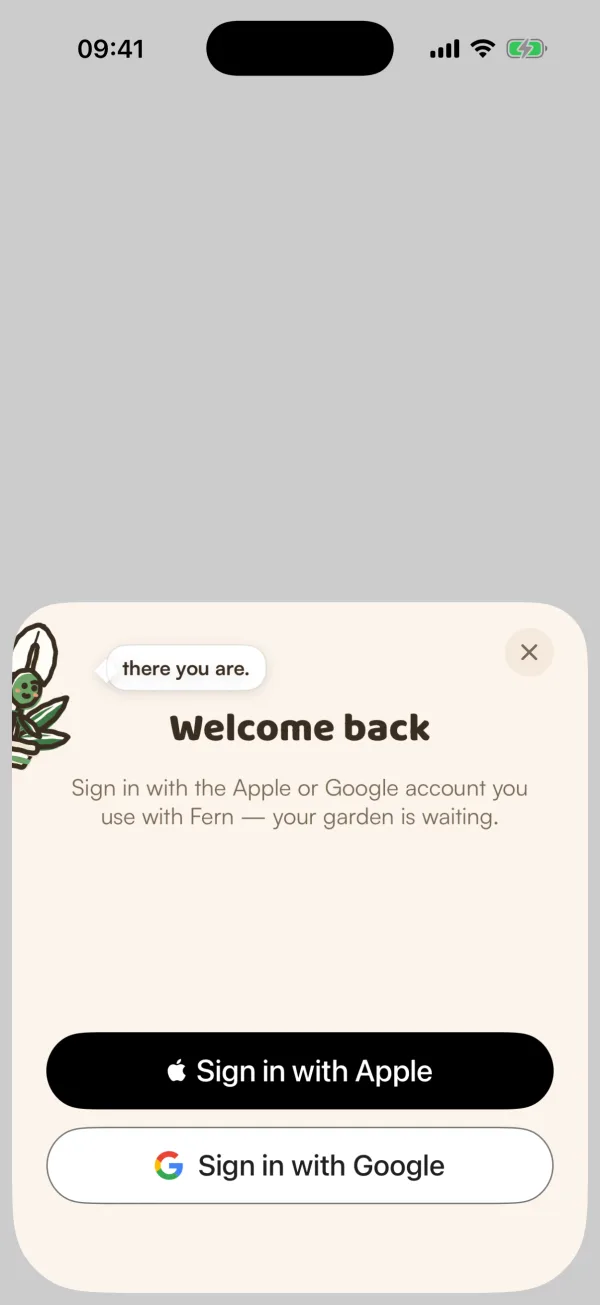
Your saved garden lives with your Fern account, not on your phone. On a new phone, or after reinstalling, sign in with the Apple or Google account you saved it with and everything is there: your plants, their history, your homes and your Fern Pro membership.
Sign in
- Install Fern and open it.
- On the first screen, tap I already have an account (under Get started).
- "Welcome back": "Sign in with the Apple or Google account you use with Fern — your garden is waiting." Tap Sign in with Apple or Sign in with Google, whichever you used before.
- Confirm in the Apple or Google window.
Fern skips setup and opens on Today with your garden.
If you started as a guest first
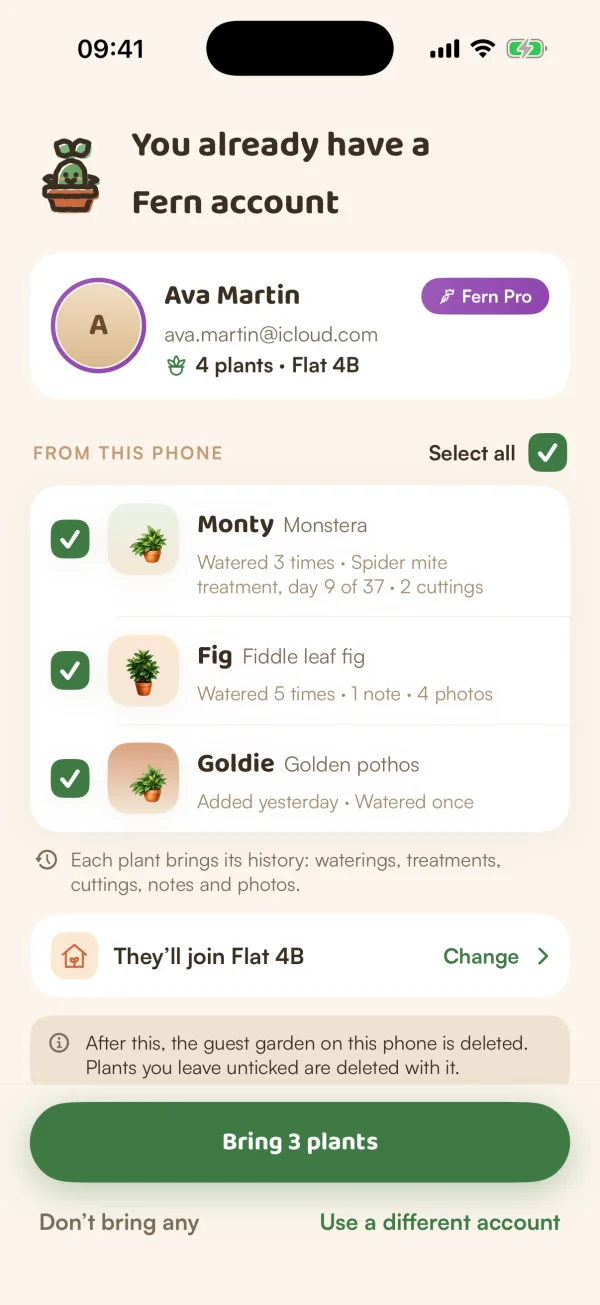
If you tapped Get started on the new phone, added a plant, and then saved your garden with the account you already had, Fern notices and asks what to do with the plants on this phone.
You see "You already have a Fern account", your account's name and how many plants it has, then a list headed From this phone:
- Tick the plants you want to keep, or tap Select all. "Each plant brings its history: waterings, treatments, cuttings, notes and photos."
- Check where they'll go: "They'll join My home". Tap Change to pick another of your homes.
- Tap Bring N plants. Fern moves them into your account and signs you in.
Or:
- Don't bring any: Fern asks "Delete the guest garden?". Tap Delete and sign in to leave the phone's plants behind, or Go back.
- Use a different account: nothing moves, and you stay a guest on this phone.
"After this, the guest garden on this phone is deleted. Plants you leave unticked are deleted with it." If your account already has a plant with the same name, Fern says so: "Your account has a Monty too. You'll have both."
When there's nothing on the phone to bring, Fern says "Welcome back" with your name and "Nothing on this phone to bring." Tap Continue.
What comes back
Everything stored with your account: your plants, schedules, care history, photos and notes, your homes and the people in them, your Growers profile, and Fern Pro if you have it.
A few things belong to the phone, so set them again if you like: the look and appearance (You › Appearance) and whether your phone lets Fern send notifications.
What if…
What if Fern starts the setup questions instead of my garden?
That sign-in has no Fern account yet, so Fern made a new one. You probably used a different Apple or Google account before. Go to You, tap Sign out, and sign in again with the other account.
What if Fern says "This email has a Fern account with a password"?
Fern can't join an older email-and-password account from Sign in with Apple or Google, so nothing changes. Tap Keep using Fern as a guest, and see Help and feedback.
Will I get another free trial on the new phone?
No. The trial is once per account, so your account carries on where it was. Your Fern Pro subscription comes with you; see Manage your subscription if it doesn't show.
Can I use Fern on two phones at once?
Yes. Sign in with the same account on both and they show the same garden.
What if I never saved my garden on the old phone?
A guest garden can't move to another phone. On the old phone, open You and save it first, then sign in on the new one.