
Join a home
Join someone's home with the code they shared, or accept an invite sent to your email. Joining is free, and you share their plants and reminders.
On this page
Joining a home puts you in the same garden as the people you live with. You'll see the home's plants, get reminders for the ones nobody has claimed, and can log care together. Joining is free on every plan.
Join with a code
Ask someone in the home for its code: a short run of letters and numbers, like SB24GKYT.
- On You, under Households:
- With no home yet, tap Household, then Join with code.
- With two or more homes, tap Your homes, then the green +, then Join with a code.
- With one home (Fern starts your garden in one called My home), Household opens that home, and there's no join button on it. See What if I already have a home? below.
- Type the code under "Join a home".
- Tap Join.
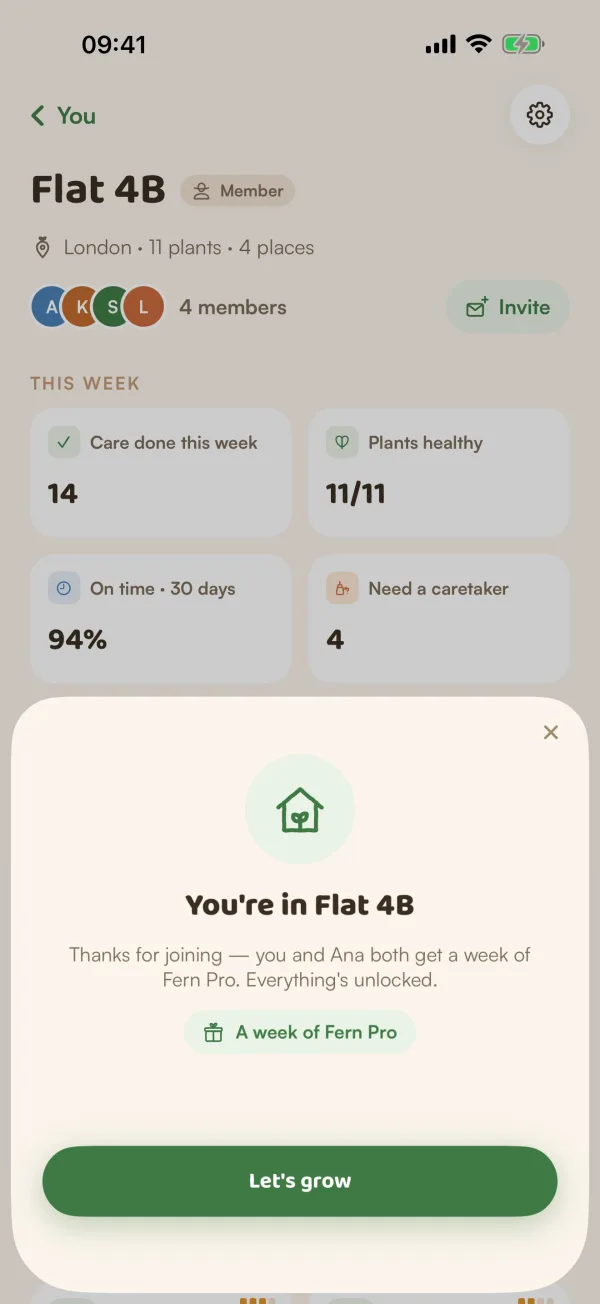
Fern says "You're in" and the home's name. Tap Let's grow. The home now shows under Households on You.
Accept an invite
If someone invited your email address, the invite waits for you on You, under Households: tap Household (it shows how many invites are waiting) or Your homes. With exactly one home, Fern opens that home instead and the invite doesn't show: see What if I already have a home? below. The invite is at the top: "Sam invited you to Flat 4B", with how many plants the home has and its city. Tap Accept to join, or Decline.
If you have notifications on, Fern also tells you when an invite arrives. Invites last 7 days.
What changes when you join
- Reminders. You get reminders for the plants you look after, and for any plant in the home that nobody has claimed yet. See Share the care.
- Today. In a shared home, each row on Today says whose it is: "Yours", "Sam's", or "Flat 4B · no one yet". See Check off care.
- Your own plants stay where they are. Move any you want to share into the home from their page. See Choose a place and a caretaker.
A week of Fern Pro
If you're new to Fern (your account is less than two weeks old), joining gives you 7 more days of Fern Pro, and the same to whoever brought you: the person who sent your email invite or, when you join with the code, the home's owner. Fern says "Thanks for joining" and shows A week of Fern Pro. If you join as a guest, the days come when you save your garden.
If you've used Fern for a while, you join just the same, without the extra days.
What if…
What if it says "Invalid invite code"?
Check the code with the person who sent it. Codes are letters and numbers only. If you've tried several wrong codes, Fern makes you wait a while before trying again.
What if I already have a home?
With exactly one home, Fern opens it straight away from You, and neither Join with a code nor invites waiting for you show there. To reach them:
- If your home is just you, like the My home Fern started you in: open it, tap the gear, then Delete this home and Delete home. Your plants stay yours, with their history; the home's places and location go. Then, on You, tap Household and Join with code, or accept your invite. Move your plants into the new home from their pages.
- If you have Fern Pro or the free trial: start a second home from one of your plants (see Create a home). With two homes, Your homes shows your invites at the top, and + has Join with a code. You can delete the extra home afterwards.
- If you're a member of someone else's home: tap Leave at the bottom of its page. Your plants come with you. Then join the new home.
What if it says the home "isn't taking new members right now"?
The owner has turned off joining with the code. Ask them to turn it back on in home settings, or to invite your email address.
What if accepting says "Couldn't join — the invite may have expired"?
Invites last 7 days. Ask for a new one, or for the home's code.
How do I leave a home?
Open the home and tap Leave at the bottom of its page. Your plants come with you. See Change a home's settings.