
Share a post on Growers
Show a new leaf, a bloom or a setup to other growers. Add up to 4 photos, a caption and an optional poll, see exactly what others will see, then publish.
On this page
A post is for showing something off: a new leaf, a first flower, a shelf you've just set up. It goes on Growers under your Community profile, with your photos and a few words. Before anything goes out, Fern shows you the post exactly as others will see it.
Start a post
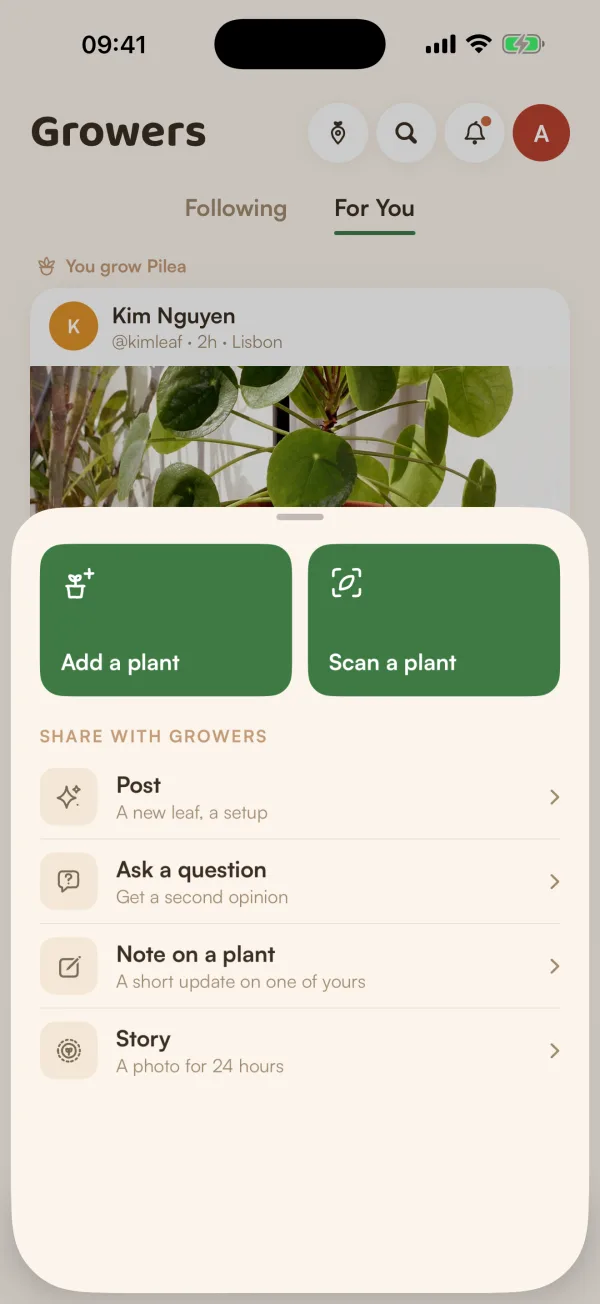
- Tap + in the bar at the bottom of the screen.
- Under SHARE WITH GROWERS, tap Post.
You can also start from a plant: on its page, open the menu and tap Post on Growers. Fern fills in the plant's latest photo and its species. Its name, place, home and care history stay private. Tap Continue.
If you haven't joined Growers yet, Fern takes you through joining first, then brings you back to your post.
Write it
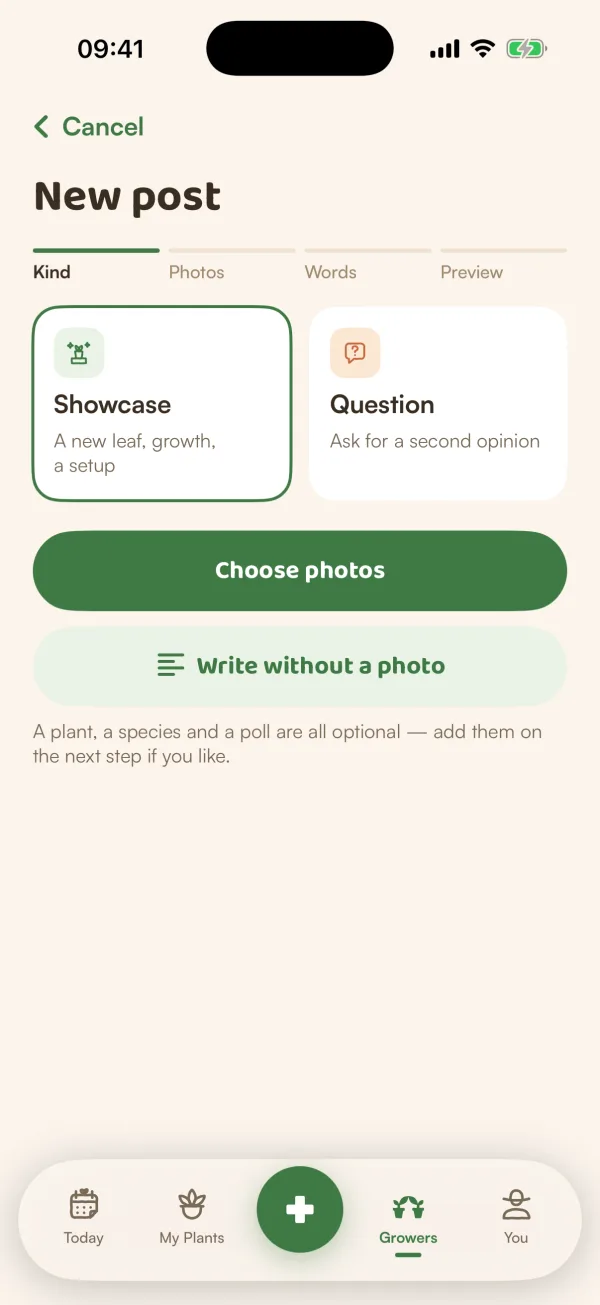
New post has four steps, shown in the bar under the title: Kind, Photos, Words and Preview.
- Kind: choose Showcase ("A new leaf, growth, a setup") or Question ("Ask for a second opinion"). For questions, see Ask other growers a question.
- Tap Choose photos and pick up to 4. If you'd rather write only words, tap Write without a photo. Under "Or start from one of your plants" you can tap a plant instead: "We fill in its photo and species. Its name, place and care history stay private."
- Photos: under Describe each photo, say what's in each one. It's needed, because "it's read aloud to people who can't see it". Fern suggests words for the first photo from the species: tap them to change them. Tap Add a photo for more, then Next.
- Say a little: write your caption (up to 1,000 characters). Links show as plain text. Then, if you like:
- Add a poll or quiz (see below).
- Species · optional: the plant it's about.
- Season: "Set from today's date. Change it if the photo is older."
- Tap Preview.
Check and publish
Preview says "This is exactly what others will see." and shows your post as a card.
- Comments: Everyone sets who can comment on this post: Everyone, People I follow or Off. It starts from your usual choice and changes this post only.
- "Location removed from photos": Fern takes the location out of every photo before it's uploaded.
- "Checked before it's public": every post is checked for safety. "Usually instant. Sometimes a person takes a look."
Tap Publish. Your post goes to the top of your feed. While it's waiting for its check, it says "Waiting for a quick check, only you can see this post."
Add a poll or a quiz
On Say a little, tap Add a poll or quiz, then choose:
- Poll: ask your question and add up to 4 options, of 40 characters each. An option can be words or a picture. "Only you'll see who voted for what. Everyone else sees totals, after they vote."
- Quiz: the same, plus "Tap the circle next to the right answer." Add Why it's right · optional, which everyone sees after they answer. "Quizzes stay open. Close yours any time from •••."
To take it off, tap Remove.
Change or delete a post
On your own post, tap •••:
- Edit caption, species & season.
- Who can comment: Everyone, People I follow or Off. Comments already there stay.
- Close the poll or Close the quiz, when there's one still open.
- Delete post: "It comes down for everyone, with its comments."
"Photos can't be changed. To use different photos, delete and post again."
What if…
What if it says "That's a lot of sharing for one day"?
There's a daily limit on posts. "You can post again tomorrow morning." Tap Keep as draft. Next time you start a post, Fern says "Your draft is back".
What if my post doesn't fit the rules?
Fern says "Something in this post doesn't fit the Community rules. Try other words or photos." Nothing is published until it passes.
Does posting share my plant?
No. A post shares its photos and words only. Your plant's page, care and home stay private unless you share the plant.