
Import plants from a list or another app
Bring many plants in at once from a CSV spreadsheet or screenshots of another app. You check every row before anything is added, and you can undo it.
On this page
Coming from another plant app, or keeping a list in a spreadsheet? Fern can read it, match each plant to its species and build its care schedule. Nothing is added until you've checked the list, and imports never post anything to Growers.
Open it
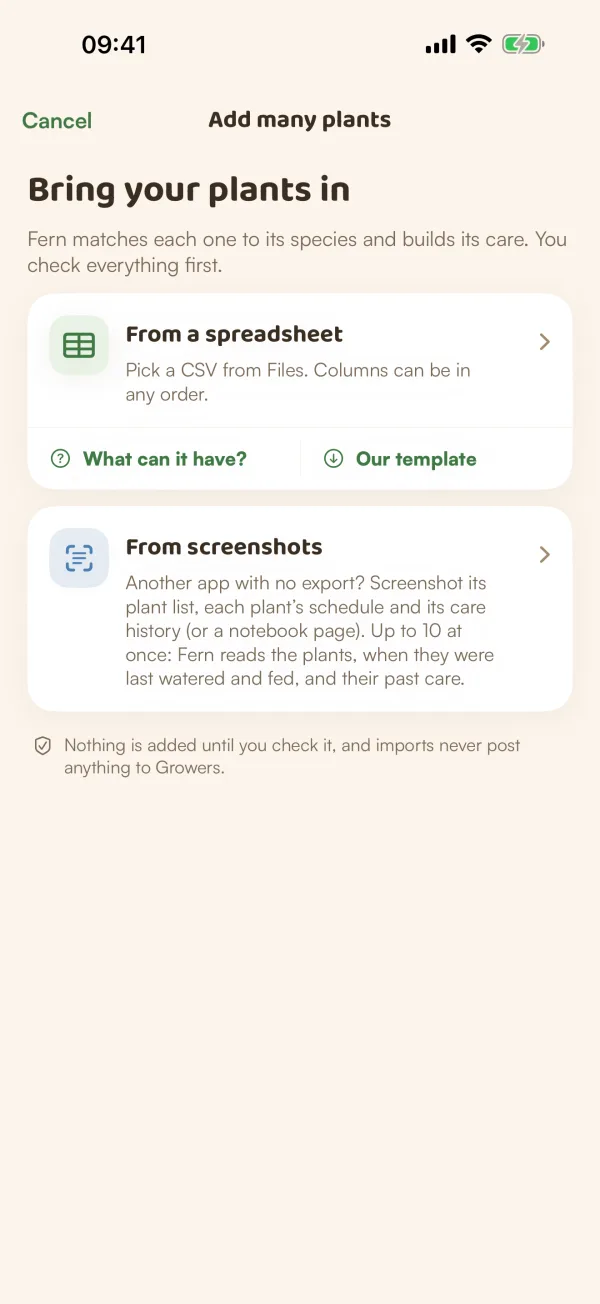
Any of these opens Add many plants:
- My Plants › ••• › Add many plants ("From a spreadsheet, a list or a photo").
- You › Your data › Import plants.
- With no plants yet, Coming from another app? on My Plants.
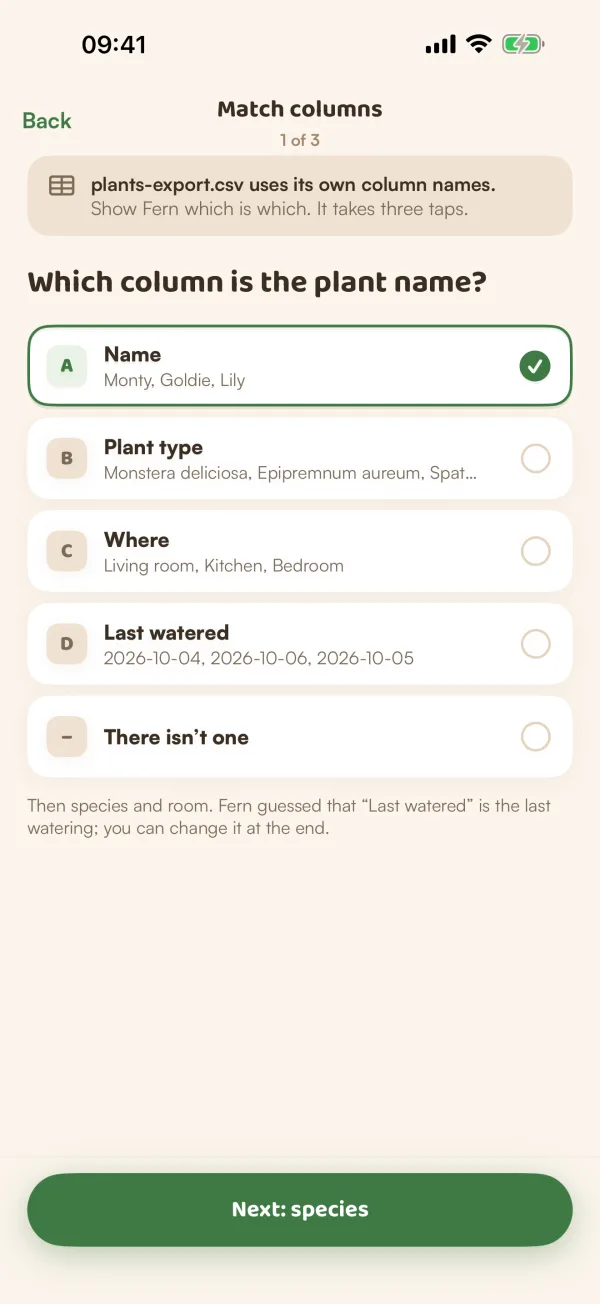
From a spreadsheet
- Tap From a spreadsheet and pick a CSV file from Files. The columns can be in any order.
- If Fern doesn't recognise your column names, it asks you to Match columns: which column is the plant name, which is the species, and which is the room. Tap the column for each, or There isn't one.
- Check the list (see below) and tap Add.
Not sure how to lay out your file? Tap What can it have? for the columns Fern reads (name, species, room, home, last watered, when you got it, notes), or Our template for a ready-made file.
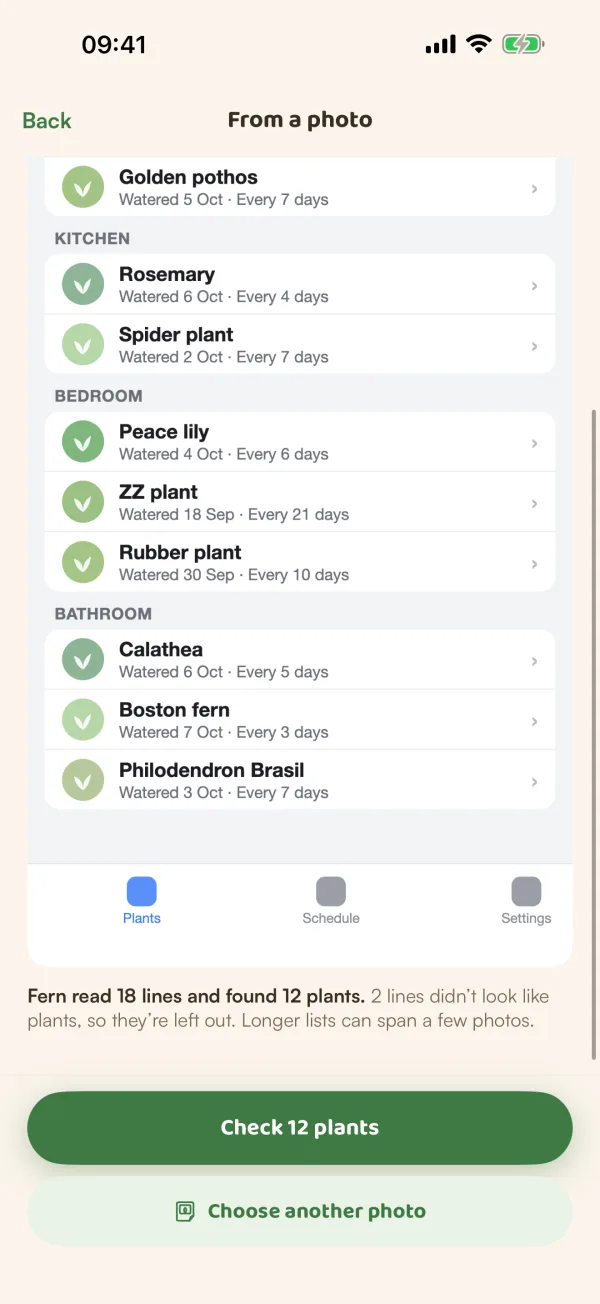
From screenshots
Another app with no export? Screenshot its plant list, each plant's schedule and its care history, or take a photo of a notebook page.
- Tap From screenshots and choose up to 10 pictures.
- Fern reads them and says what it found, for example "Fern read 18 lines and found 12 plants." Lines that don't look like plants are left out.
- Tap Check 12 plants, or Choose another photo.
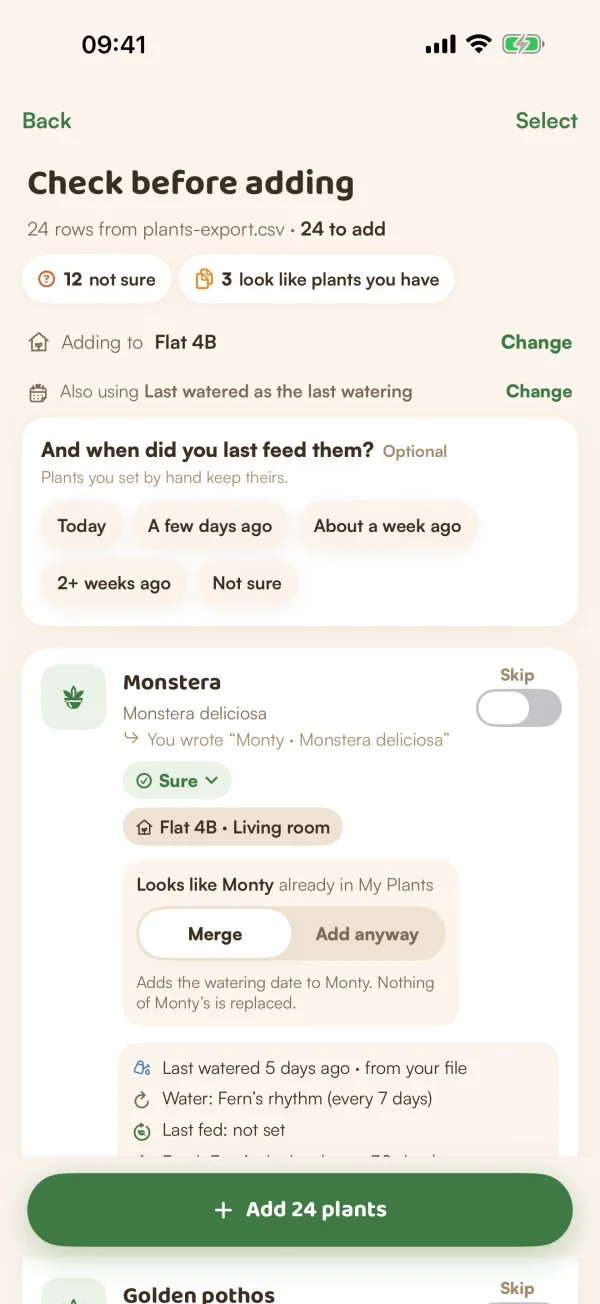
Check before adding
Every row shows what you wrote, the species Fern matched, how sure it is (Sure, Probably, Not sure or No match), and where the plant will go. At the top, chips count the rows that need a look: "not sure" and "look like plants you have". Tap one to see only those rows.
- A wrong or missing species: tap the row and choose the right one under "Which plant is this?", or Add as unknown, or Skip this one.
- A plant you already have: the row says "Looks like Monty already in My Plants". Choose Merge to add the watering date to Monty without replacing anything, or Add anyway for a second plant.
- Rooms: tap Select, choose rows, then Set home & room for… to place several at once.
- Last watered: Fern needs it to know when each plant is due. If your file doesn't say, the button reads "Say when 3 plants were last watered". Not sure is an answer too: Fern then starts with a soil check.
When it's all right, tap Add 24 plants (with your number).
When it's done
Fern builds each schedule from its species as it adds the plants, then shows how many were added, with chips such as Schedules ready and 3 merged, and how many are due this week. Tap See them in My Plants.
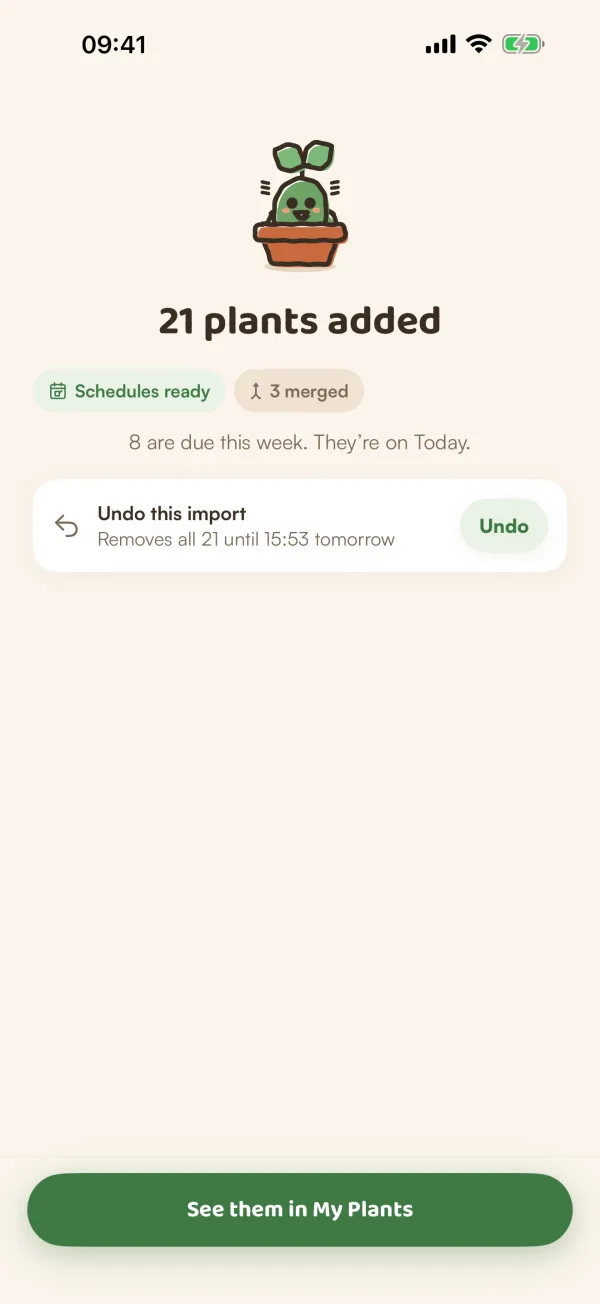
Undo an import
Changed your mind? Tap Undo on the Undo this import card. It removes the plants the import added, and the waterings it added to plants you already had. You can undo for 24 hours, from this screen or from You › Your data.
Free and Fern Pro
Import and export are free. On the free plan Fern looks after one plant: the others you import rest. They keep everything, just no reminders, until you choose which plant Fern looks after or go Pro. The check screen tells you how many will rest before you add them.
Tips
- One file or set of screenshots can hold up to 500 plants.
- After an import, Imported only in My Plants' filters shows just the plants you brought in. See Find your plants.
- Longer lists can span a few screenshots. Choose them all at once.
What if…
What if it says "Fern couldn't open that file"?
Save the spreadsheet as a CSV file and try again, or start from Our template.
What if adding stops halfway?
Fern says "Adding stopped." The plants already added stay. Tap Try again to add the rest.