
Change a home's settings
Rename a home, set its location, mute its notifications, control who can join with the code, remove people, leave, or delete the home.
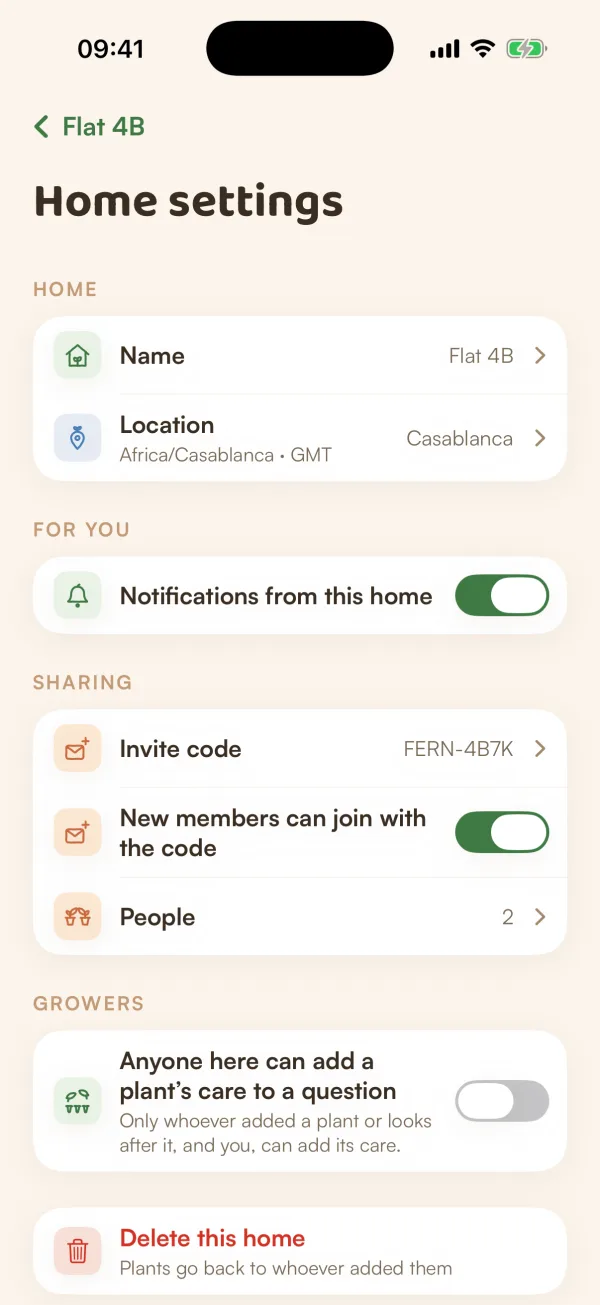
Each home has its own settings. Some are just for you, like its notifications. Others change the home for everyone, and only the owner can change those.
Open home settings
Open the home (on You, under Households), then tap the gear at the top right. You'll see Home settings.
What's in it
Home
- Name: tap to rename the home, then Save. Owner only.
- Location: the home's city and time zone. Tap to change it. Owner only. See Set your location.
For you
- Notifications from this home: turn it off to mute everything from this home, on your phone only. Everyone else still hears from it. The home's page shows Muted under This home.
Sharing
- Invite code: shows the code and opens the invite sheet (Fern Pro). See Invite people.
- New members can join with the code: owner only. Turn it off and "The code won't work until you turn this back on." Email invites still work.
- People: everyone in the home.
Growers (owner only)
- Anyone here can add a plant's care to a question: when it's on, "Everyone in Flat 4B can add any plant's care when they ask Growers." When it's off, "Only whoever added a plant or looks after it, and you, can add its care." See Ask other growers.
At the bottom, the owner sees Delete this home; everyone else sees Leave with the home's name.
Remove someone
Only the owner can remove people.
- On the home's page, tap the faces at the top, or People further down.
- Tap ••• next to the person, then Remove with their name.
- Confirm with Remove.
"Their plants leave this home with them, and they stop getting its reminders." Plants they looked after for others stay, without a caretaker. The home gets a new invite code, so the old one stops working for them.
Leave a home
- Open the home and tap Leave with its name, at the bottom of the page or of Home settings.
- Confirm with Leave.
"Your plants come with you." They leave the home with you, with all their history. You can join again later with the invite code.
The owner can't leave their own home. They can delete it instead.
Delete a home
- In Home settings, tap Delete this home.
- Confirm with Delete home.
"Plants go back to whoever added them. Everyone else stops getting this home's reminders." Each plant stays with the person who added it, with its history. The home's places go with it.
What if…
What if I can't change the name?
Only the owner can rename the home, change its location, remove people or delete it. The footnote at the bottom of settings says who the owner is: "Only Ana, the owner, can rename or remove people."
What if I own the home and want to move out?
The owner can't leave, and home settings has no way to make someone else the owner. You can delete the home: each plant goes back to whoever added it, so the others keep theirs. If you're deleting your Fern account, Fern asks you to hand your homes to someone in them first. See Delete your account.
What if I muted a home and miss its reminders?
Turn Notifications from this home back on. If reminders still don't arrive, see Reminders not arriving.